
 close navi
navi
The first thing to consider when organising your music files is how will you store them?
I'll add a few options below along with what I use

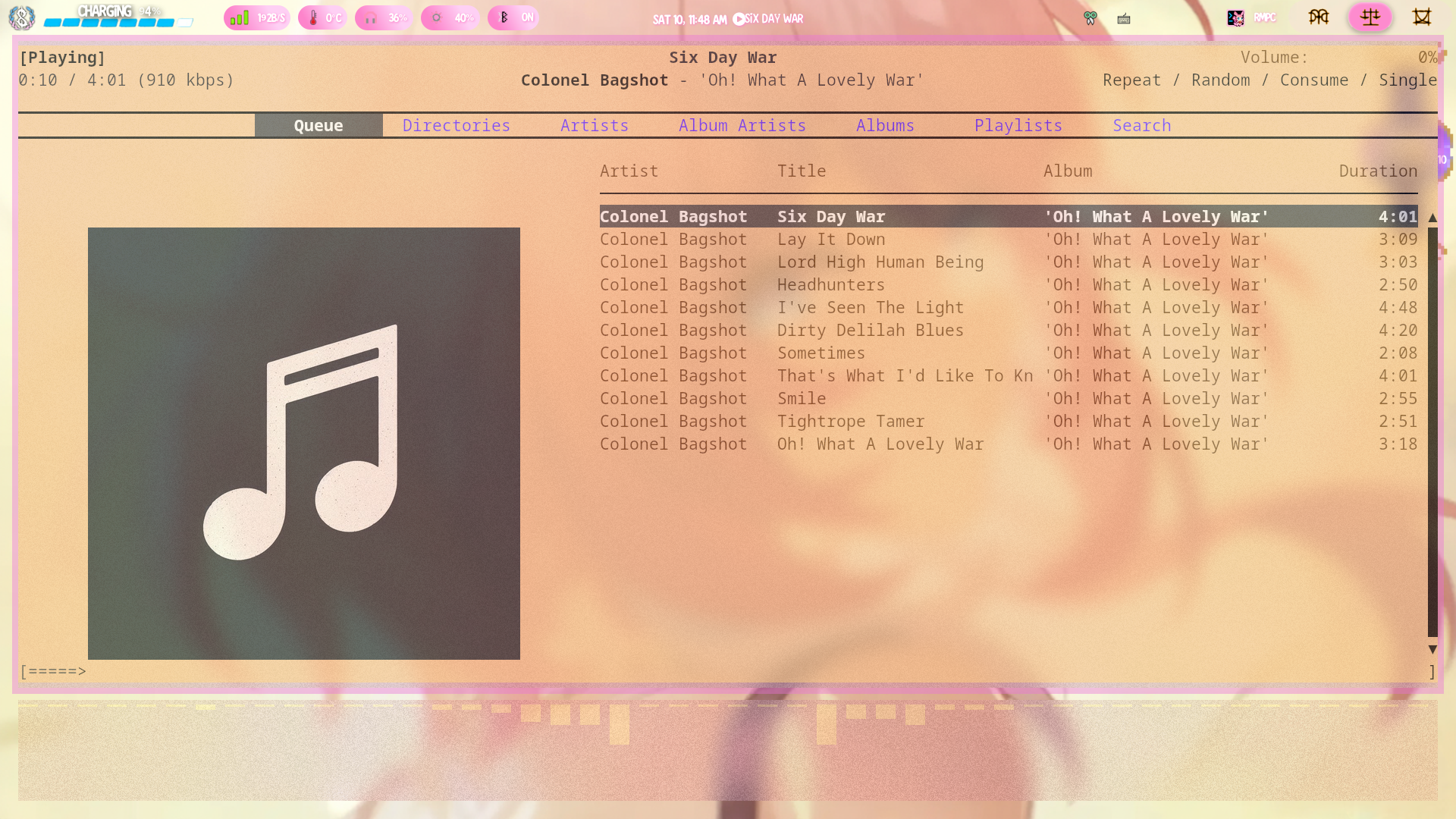
The simplest solution is to store your music on the device you are listening to it on. This means just storing the files on your mp3 player or computer. This is the cheapest and easiest method but can be problematic when adding or removing music as some 2000s era mp3s want you to use specific software to add music. These softwares were buggy at the time and most of them are unusable on modern windows, let alone support on macos. Even if you do get them running using linux wine or windows compatability layer, they can be super tedious to use. Even without these issues, moving the files between devices is still tedious requiring a snake of wires or dongle hell and it's often easier to download a new copy altogether

I'm combining these as there isn't much difference once all is up and running but to explain breifly: A cloud server is a storage device accessed via the internet. Think Google Drive or Apple iCloudA NAS is a cloud server you own and run locally on your own network. The differences to bear in mind is that a cloud server usually requires a monthly cost, whereas a NAS has a lengthy and difficult setup and will very slightly increase your energy bills. Personally I use a NAS running nextcloud These methods allow you to stream music with a reduced monthly fee vs music streaming or download and upload any of your music files from anywhere with an internet connection as and when. The downsides to this method is your mp3 player needs to have internet connection, and there is a risk of downtime (which you will also have to diagnose and fix with a NAS)

Probably the best of both worlds from the previous options, External storage (sd card, usb stick, etc.) Alllows you to have the ease of the cloud options without an internet access. The main issues with external storage is compatibility, your mp3 player and computer must both be able to connect to the card or stick and you can very easily end up in dongle hell, especially with recent macbooks, if this isn't possible. The second is size. Loosing an sd card is super easy, especially with spring loaded docks like both my mp3 players have. You will also have to weigh up cost or fragmentation. You can either buy an expensive card upfront and have a ton of storage on it, or buy a smaller affordable card and buy another cheap one when you fill it then have to keep track whats on what
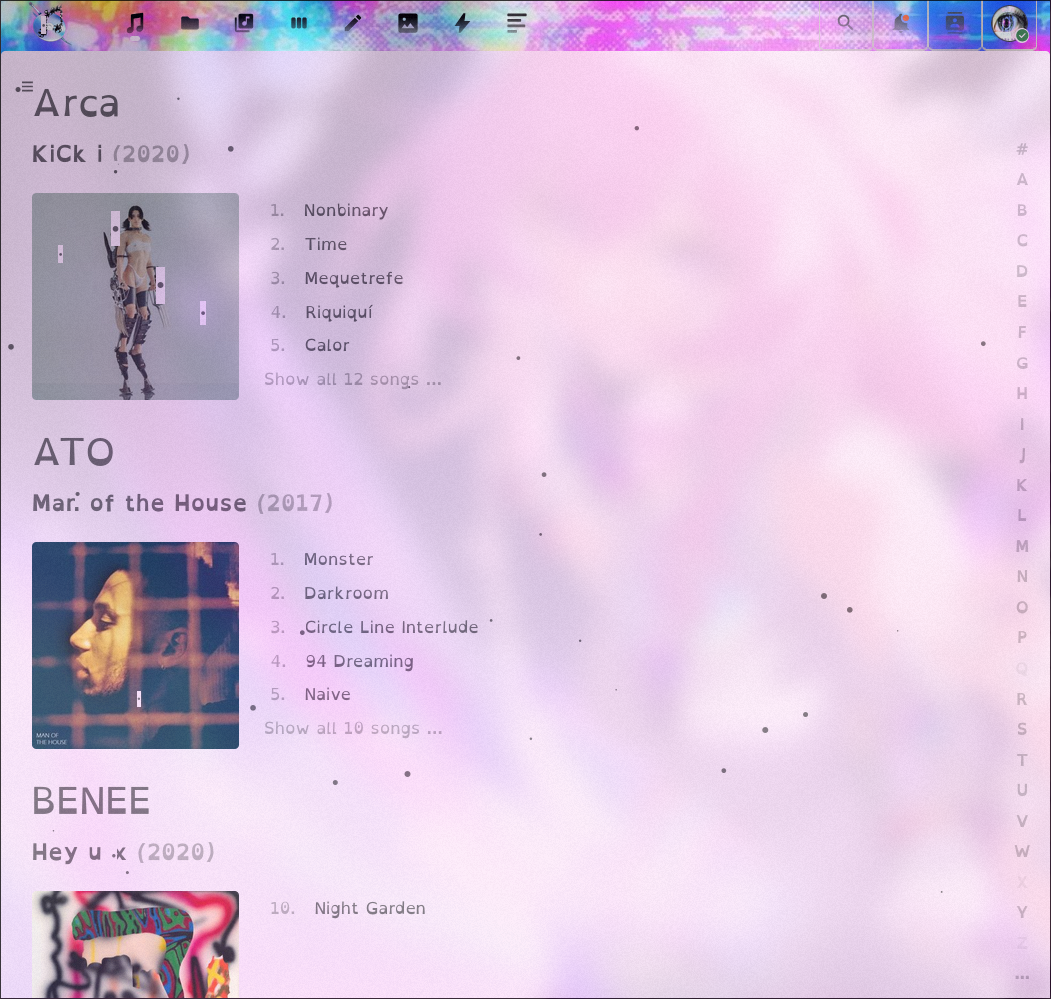
This one depends on the size of your music collection and your idiosyncrasies. My music foldet tree looks something like ~/Music/label/artist/album with a dedicated subfolder in the music folder for singles and loose songs that are disconnected from their albums. I'm tempted to rework this folder as it's my DJing folder and want something morefit for that purpose. Potentially ~/Music/Singles/Initial_Key or ~/Music/Singles/BPM (in multiples of 10). Also for those wondering the ~ represents my home folder. The issues with my method is that bands can change record label or get signed if they started indie which means the catalogue for a certain artist can be split across different folders. I have two different folders for Dan Mason as an example. If I want to listen to Void I need to go to my Business Casual folder, if I want Forever Nothing I need my 100% ELECTRONICA folder. The same problem arises with using the more popular genre/artist/album which is how I sort my physical music. But you have the same issue, take Yeule's discography. Every album they make is a different genre, and although you could squeeze Serotonin II and Glitch Princess together into a Pop folder, Softscars is more deserving of a shoegaze / post punk classification and Evangelic Girl Is A Gun fits better with a trip hop playlist. The only solution I can think of to this is to start with your artists but then you're scrolling for forever to find someone like zovi if your file manager is alphabetically sorted. There must be some esoteric method I'm not thinking of though. Please let me know if you got any ideas here
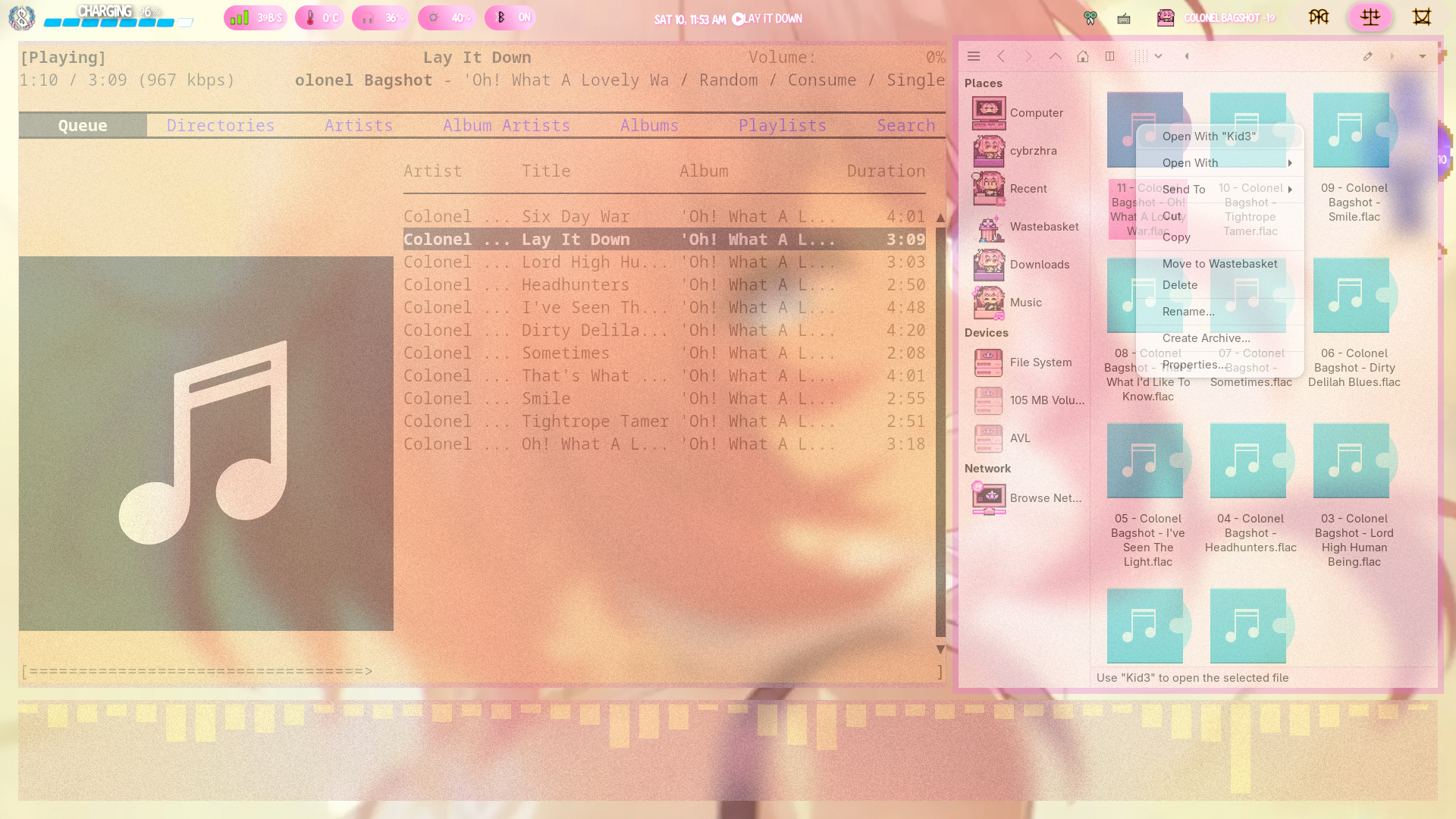
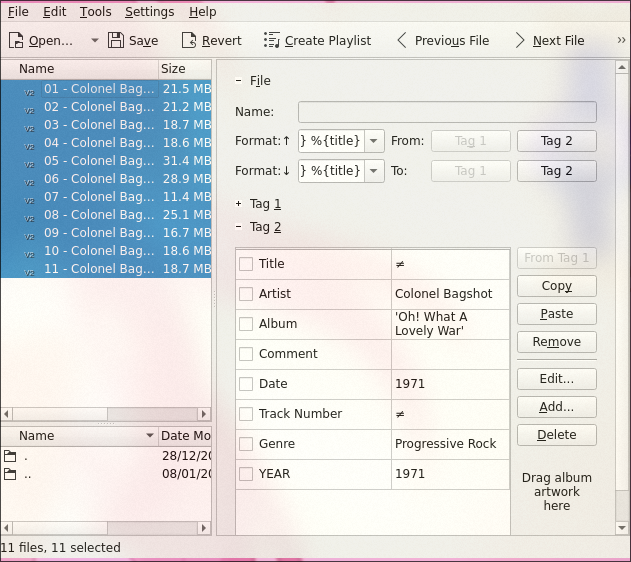
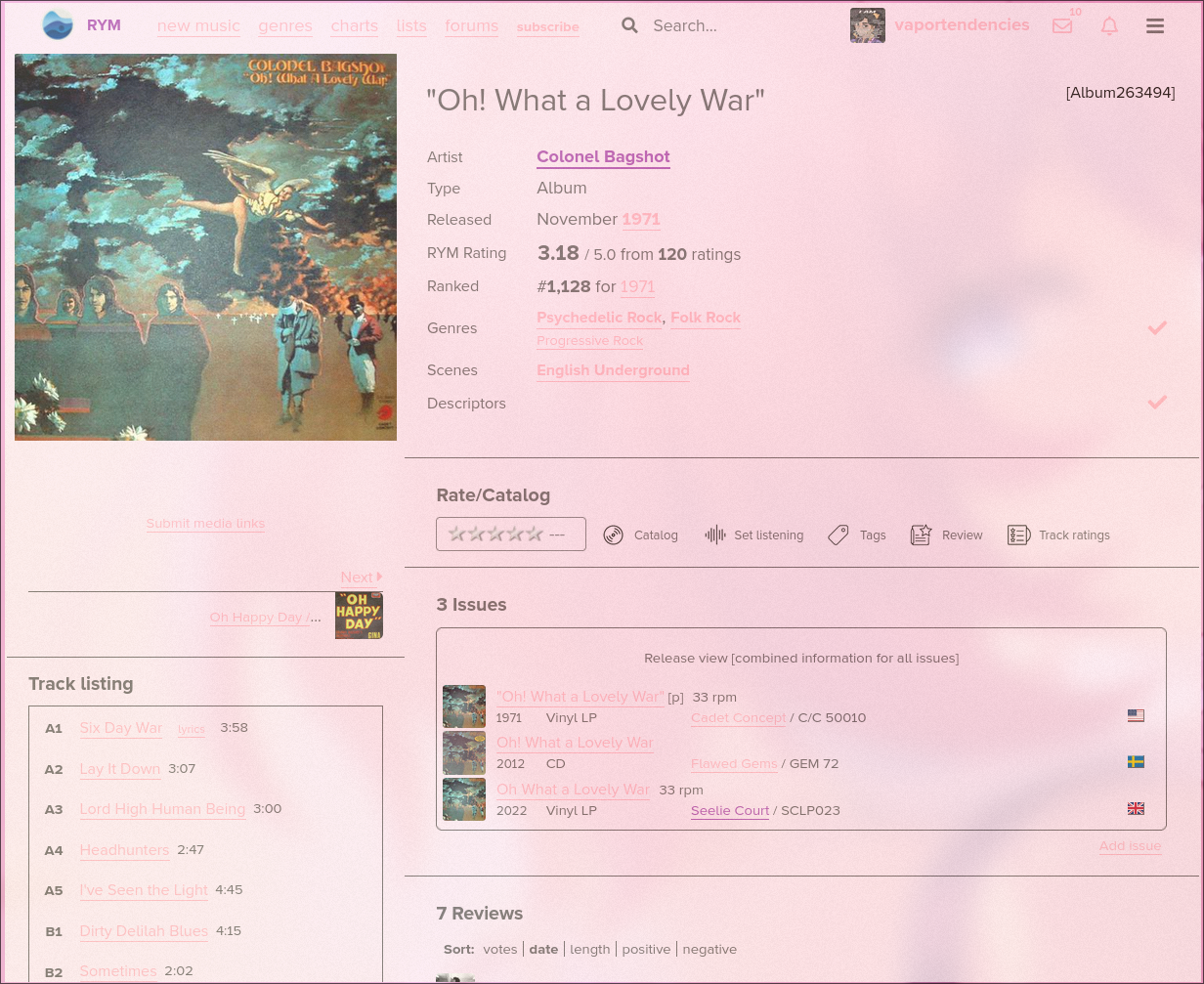
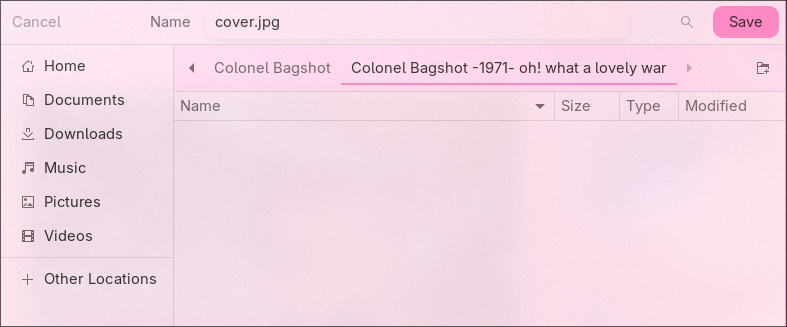
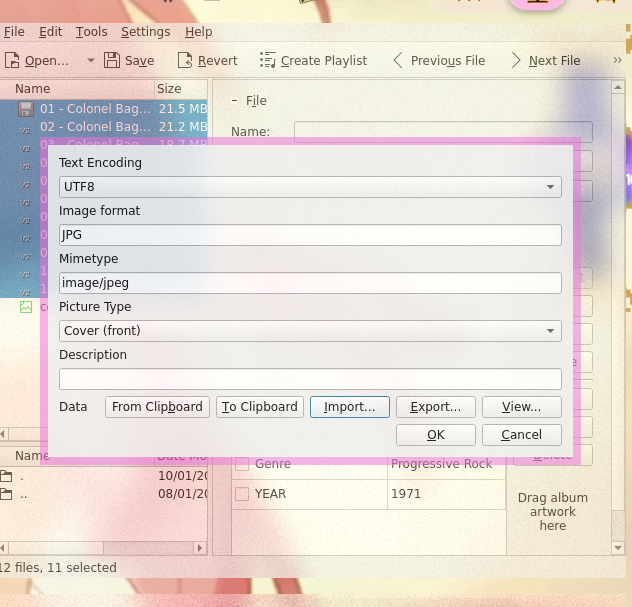
Most of the time, unless you are using wav, Your music will have metadata already supplied. But what if it doesn't? Well if you are a mac user you're in luck bc Apple's auto metadata tool for disc ripping is insanely good and uses the same DB as car stereos do to identify your CD but with more user control. But if you aren't ripping a CD on Mac and your files don't have metadata, you may need to do it manually. There are tons of great tools for this. On MS Windows and Mac there's MusicBrainz Mp3tag which pulls from MusicBrainz online database. Alternatively, and my choice, is KDE Kid3 which works on GNU Linux, MS Windows, Mac, Theo De Raadt OpenBSD (according to wikipedia but I can't find this mentioned on the KDE website), & Google Android. Kid3 also allows access to MusicBrainz DB along with a few other DBs. Kid3 Is defo the better choice due to it pulling from more sources but it's designed for Linux first, KDE DE in particular, so can look out of place compared to your other apps on Windows and Mac, as well as non KDE DE's on linux. Personally I find myself using metadata editors to embed artwork manually as this seems to be where the auto tag struggles the most. I'll give a quick demo how to do that below.
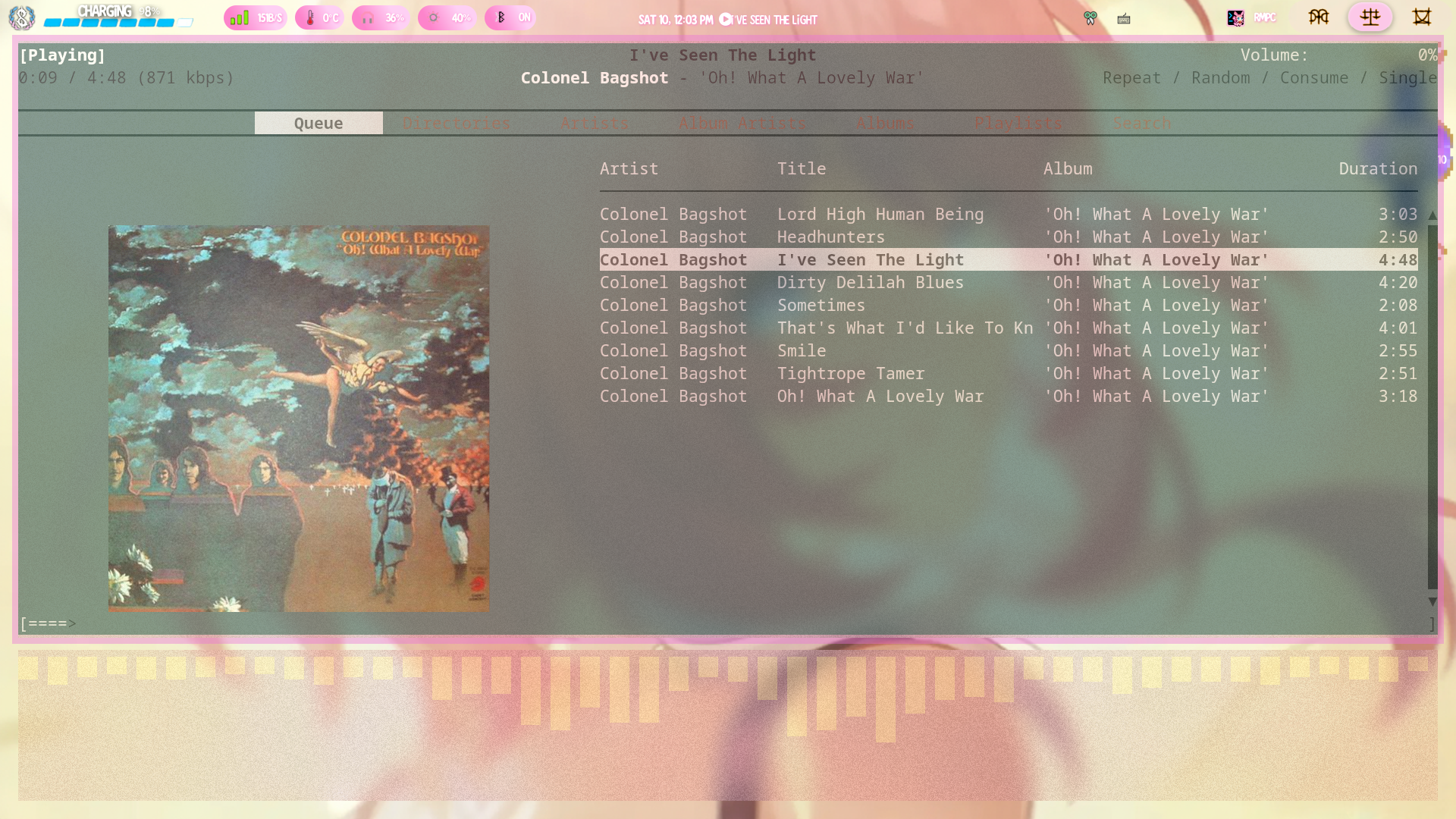
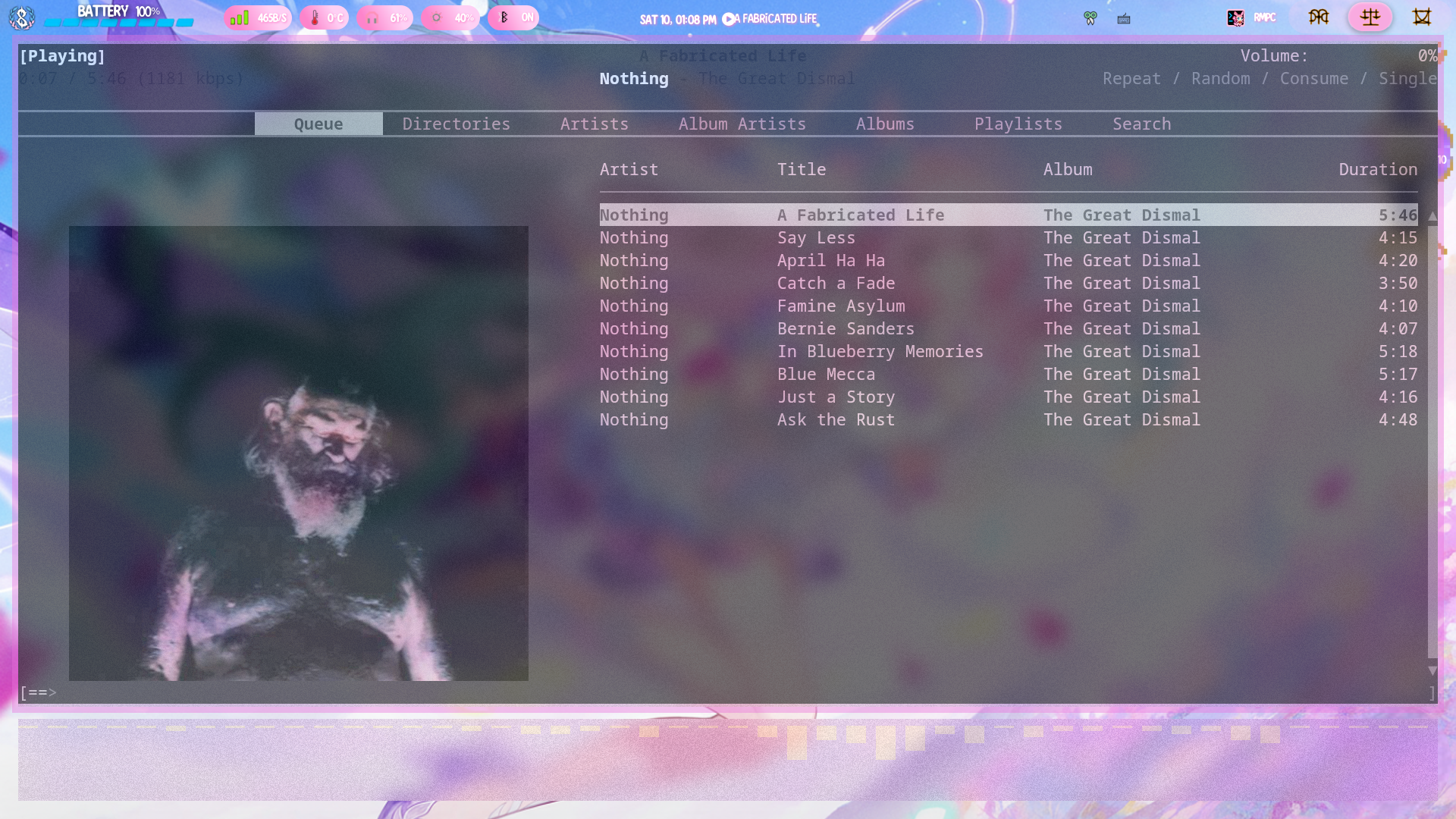
Some music players can scrape lyrics from online, but for an mp3 player that might not always have internet connection you will have to use a '.lrc' file to add timed offline lyrics. For this you will need a computer witha basic text editor such as MS Notepad (I'll be using KDE Kate which is available on GNU Linux, MS Windows, & Apple Mac) & a Browser (the website I reccomend is supper buggy on my Mozzilla based browser so I'd reccomend a Chromium based or forked browser [in general don't use MS Edge, Google Chrome, or Mozzilla Firefox either unless you have a beefy browser that can tank the hit to your ram from the spyware in those browsers] I will be using Vivaldi Tecnologies Vivaldi which is available on GNU Linux, MS Windows, Apple Mac, Apple iOS, & Google Android). I will be adding lyrics to Nothing's The Great Dismal.
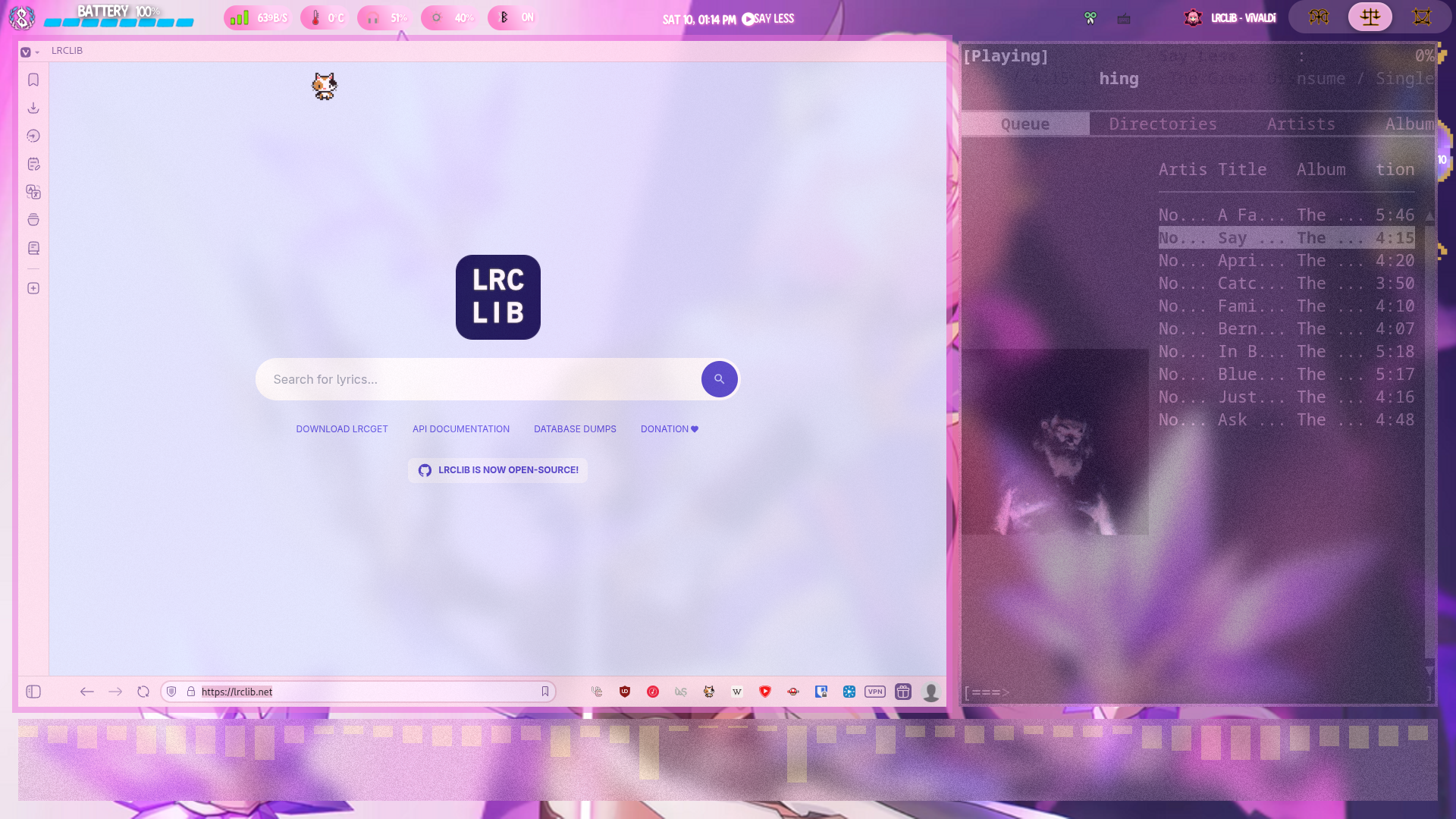
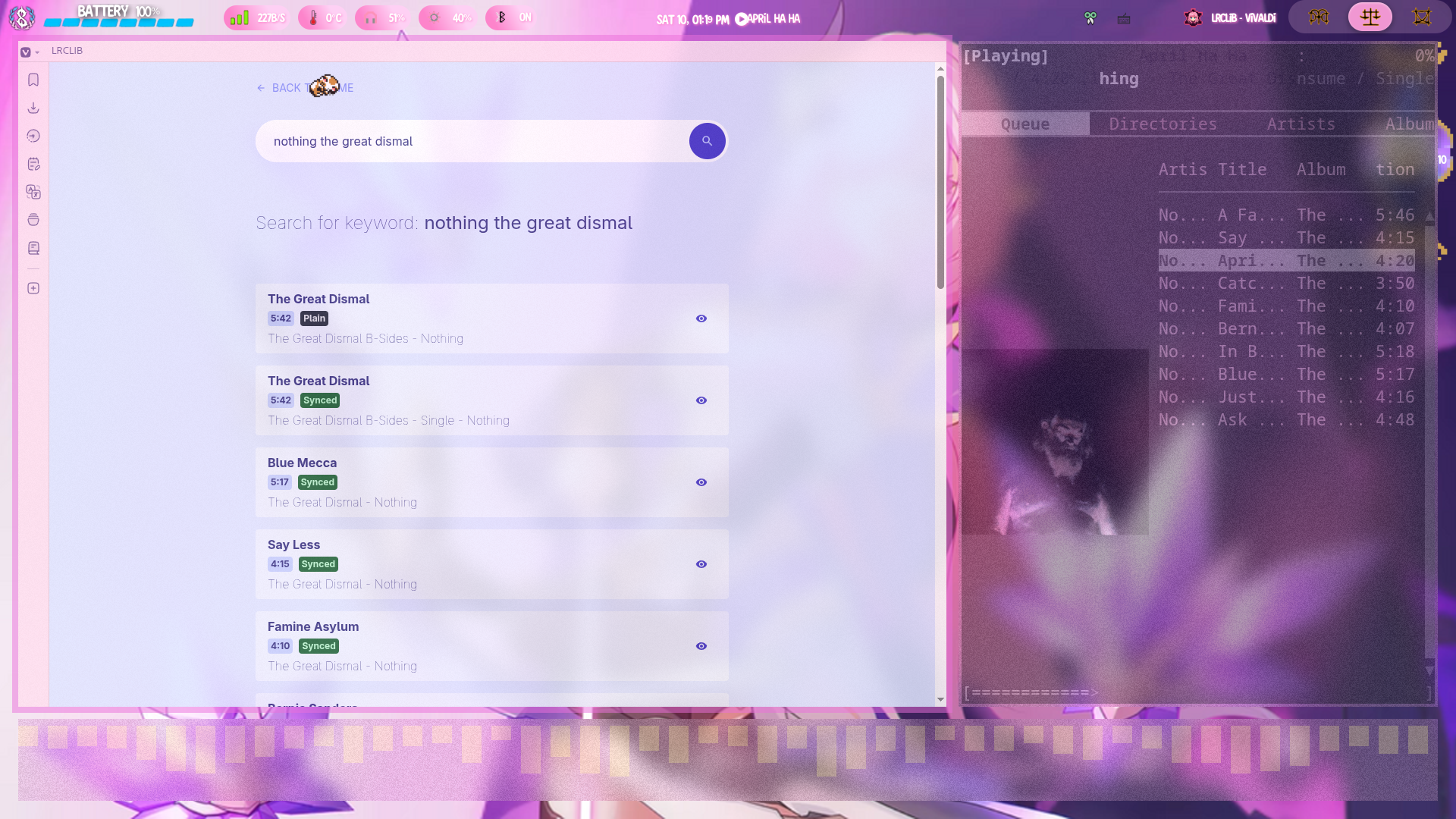
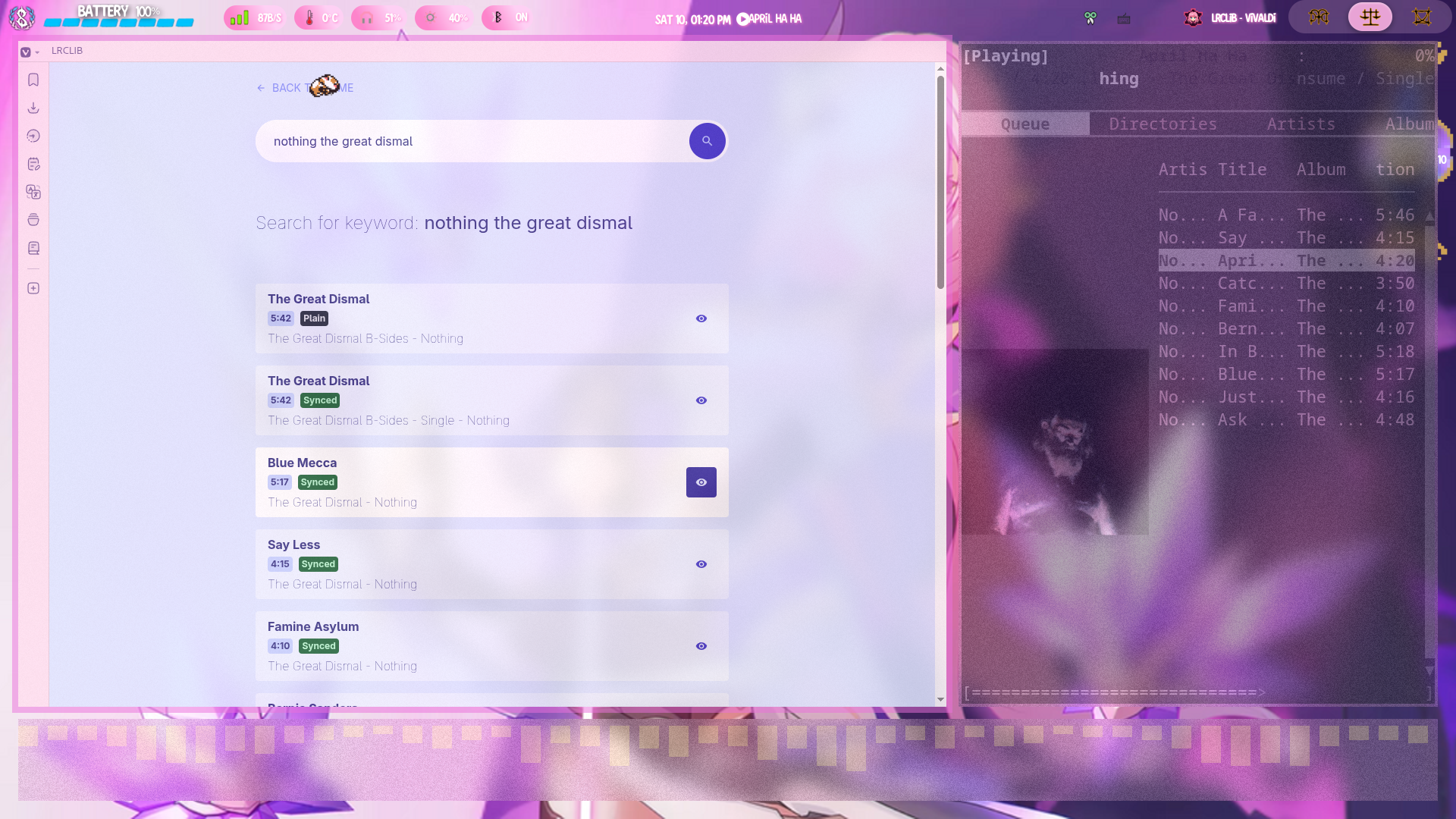
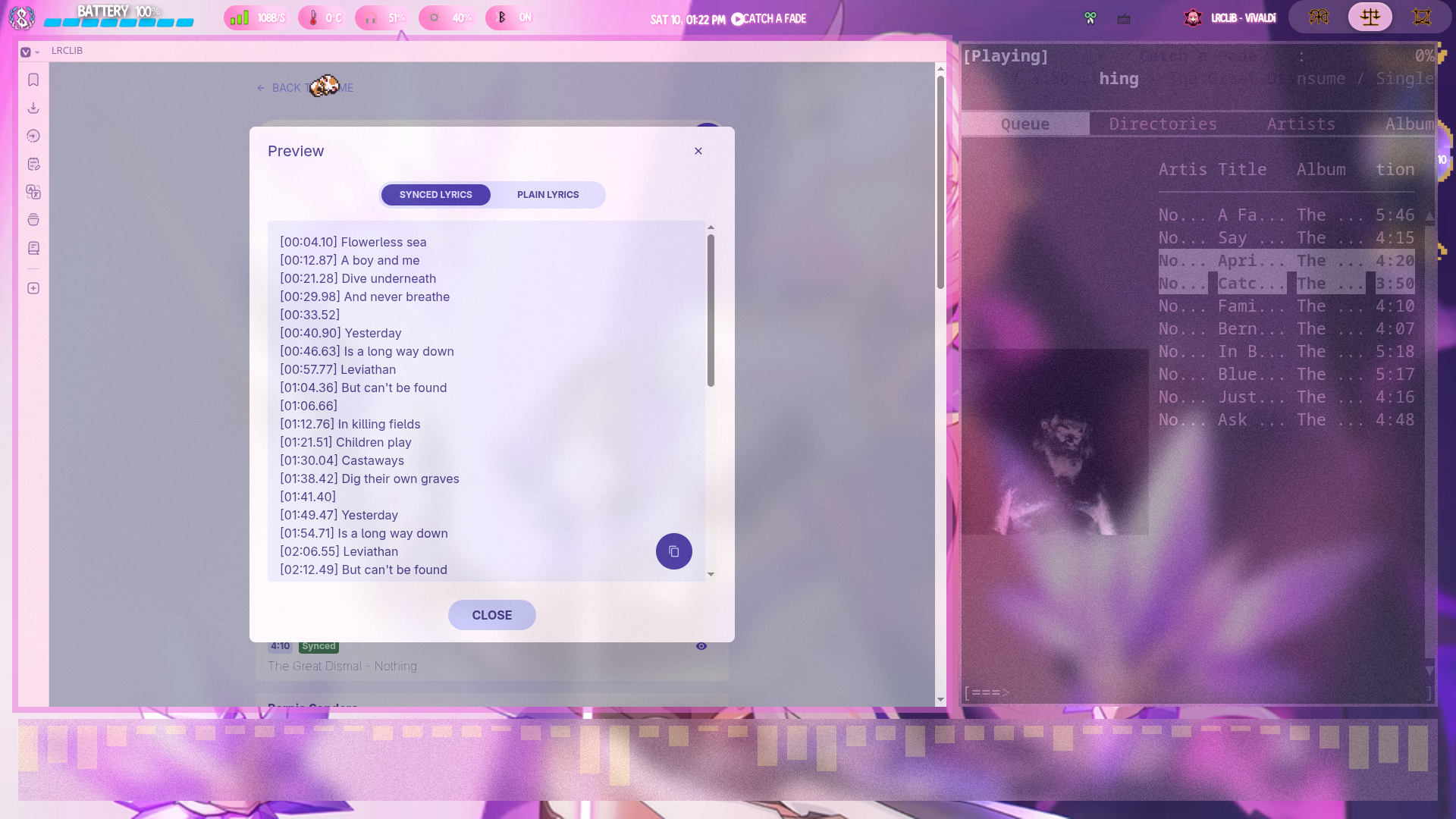
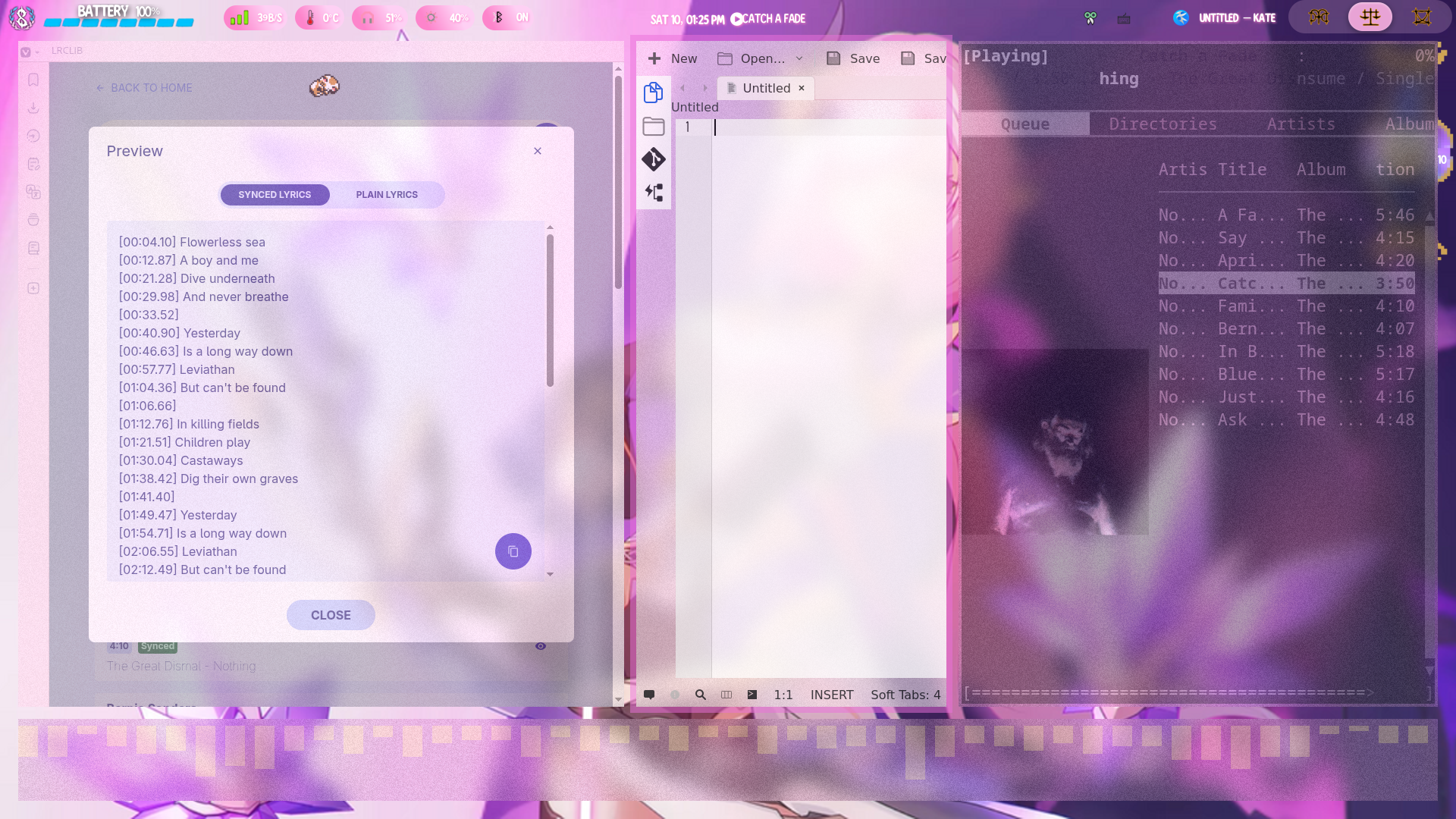
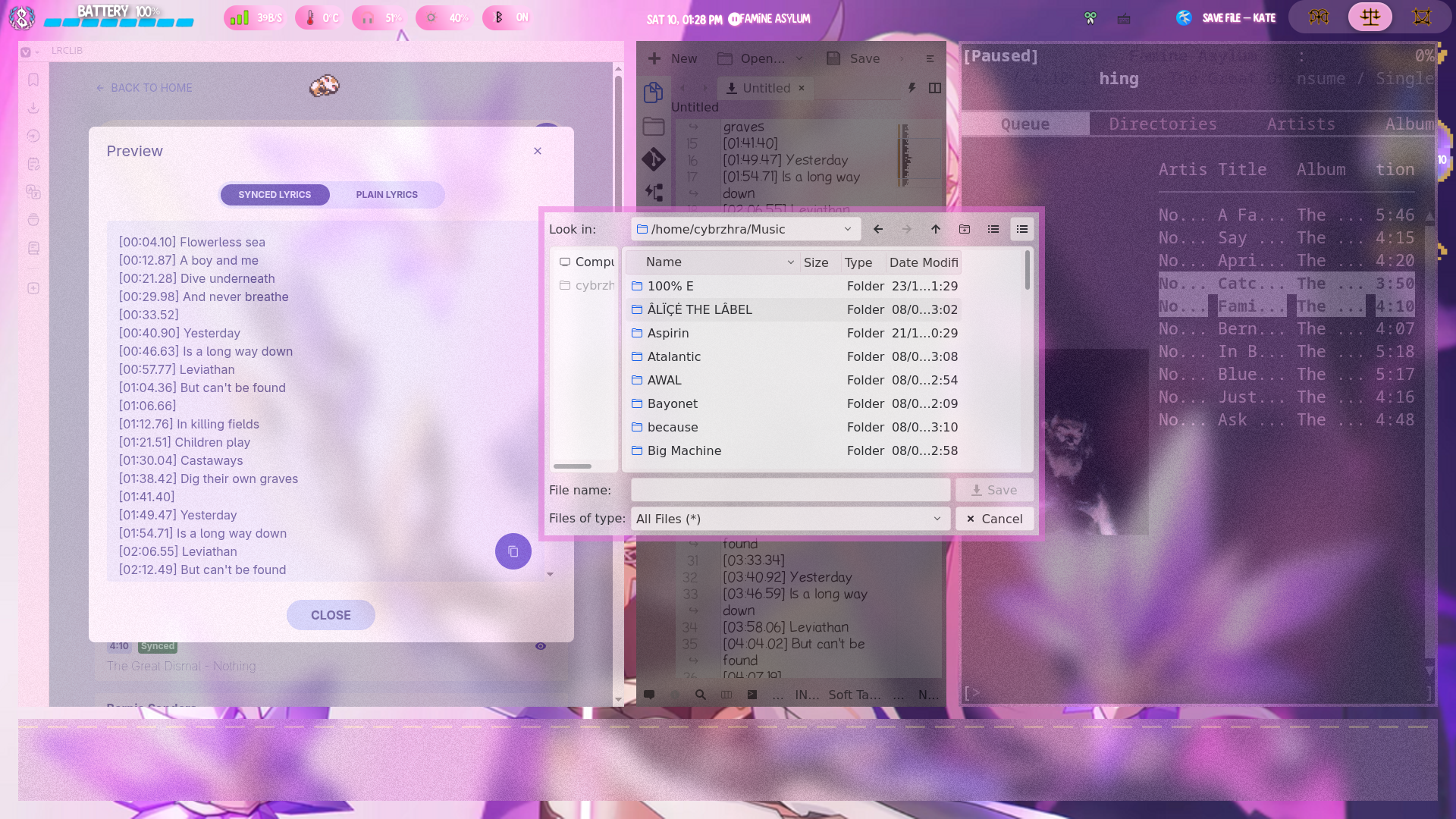
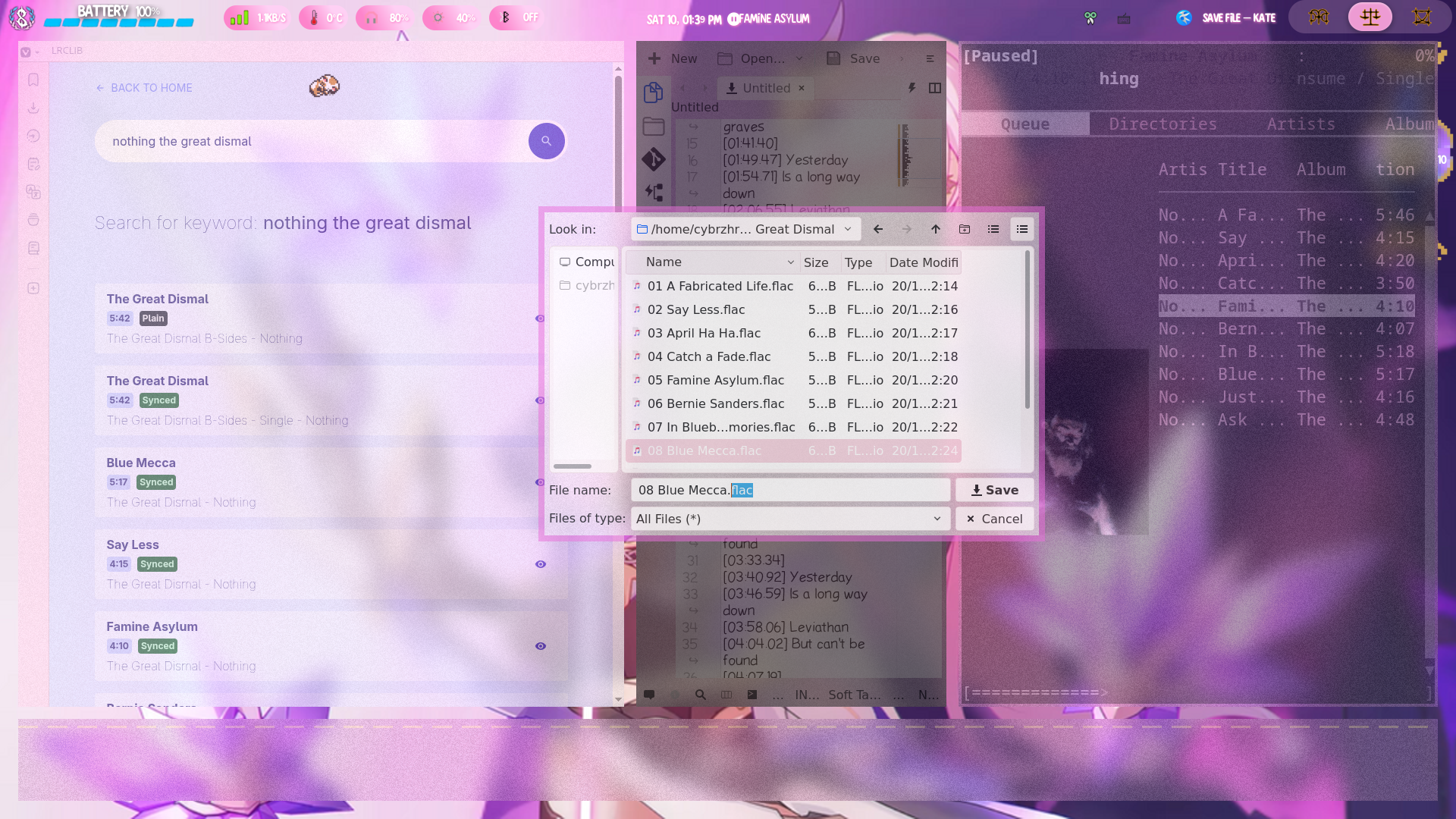
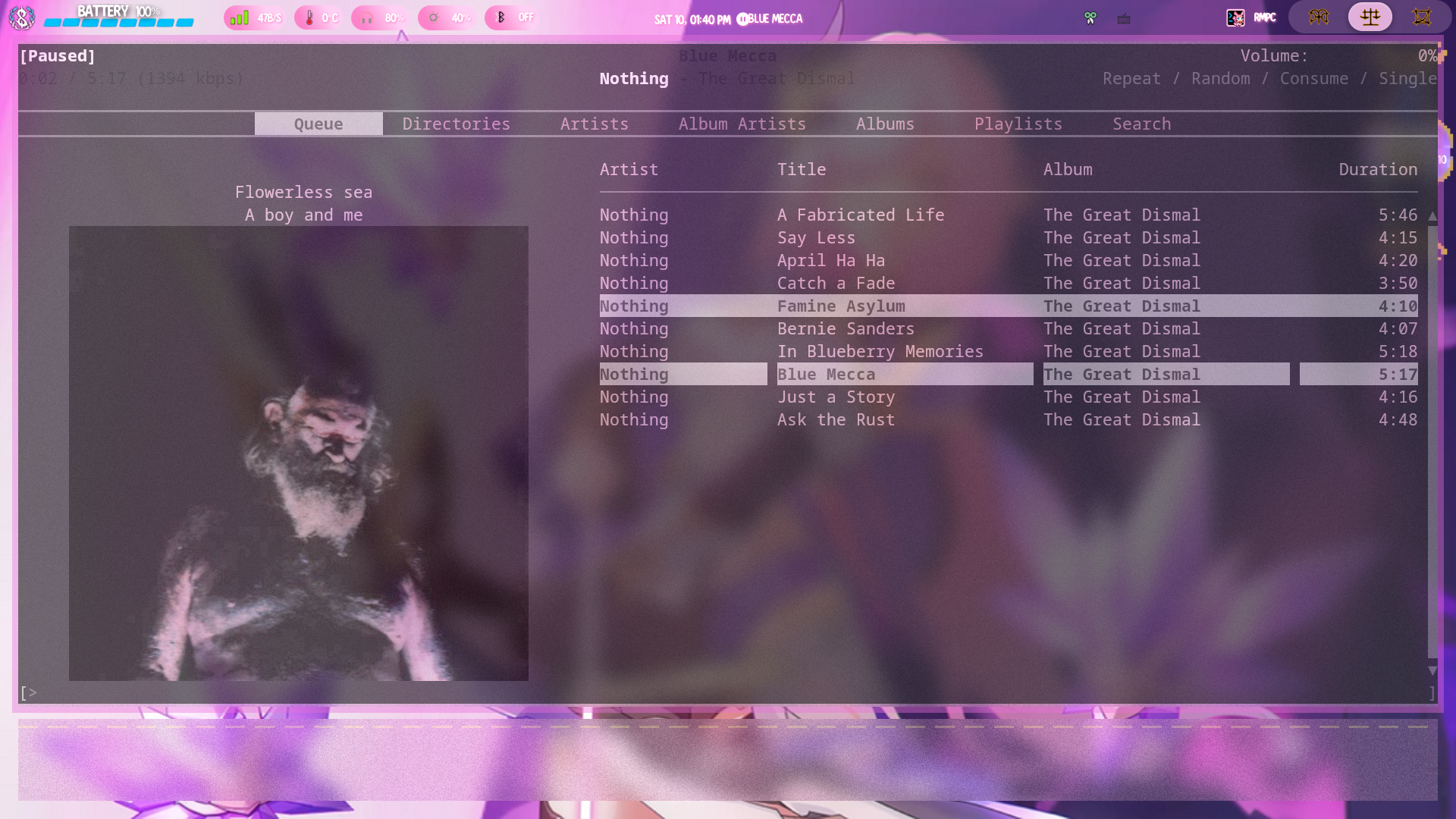
if LRCLIB doesn't have synced lyrics for your song you can convert song lyrics to timed lyrics. Copy the non timed lyrics into your text editor as before. For each line add the time they appear in the song at the beginning of the line in square brackets [mm:ss.msms]. After the last line add an extra line that is the songs length in square brackets and save as shown above.
 home
home blog
blog poetry
 music reviews
 find me